Appearance
安装Node.js
Node.js® 是一个开源、跨平台的 JavaScript 运行时环境。
下载与安装
下载
官网下载地址:https://nodejs.org/zh-cn/download
注意
由于v17版本开始默认使用OpenSSl 3.x,虽然OpenSSL 3.x API基本兼容OpenSSL 1.1.1,但由于对允许的算法和密钥大小的限制要求更高,生态中依赖的各种包会出现不符合要求的情况,从而导致ERR_OSSL_EVP_UNSUPPORTED错误,建议暂时使用v16版本,等待生态及基础版本升级。
安装版本 Node.js: v16.20.0 (npm 8.19.4)
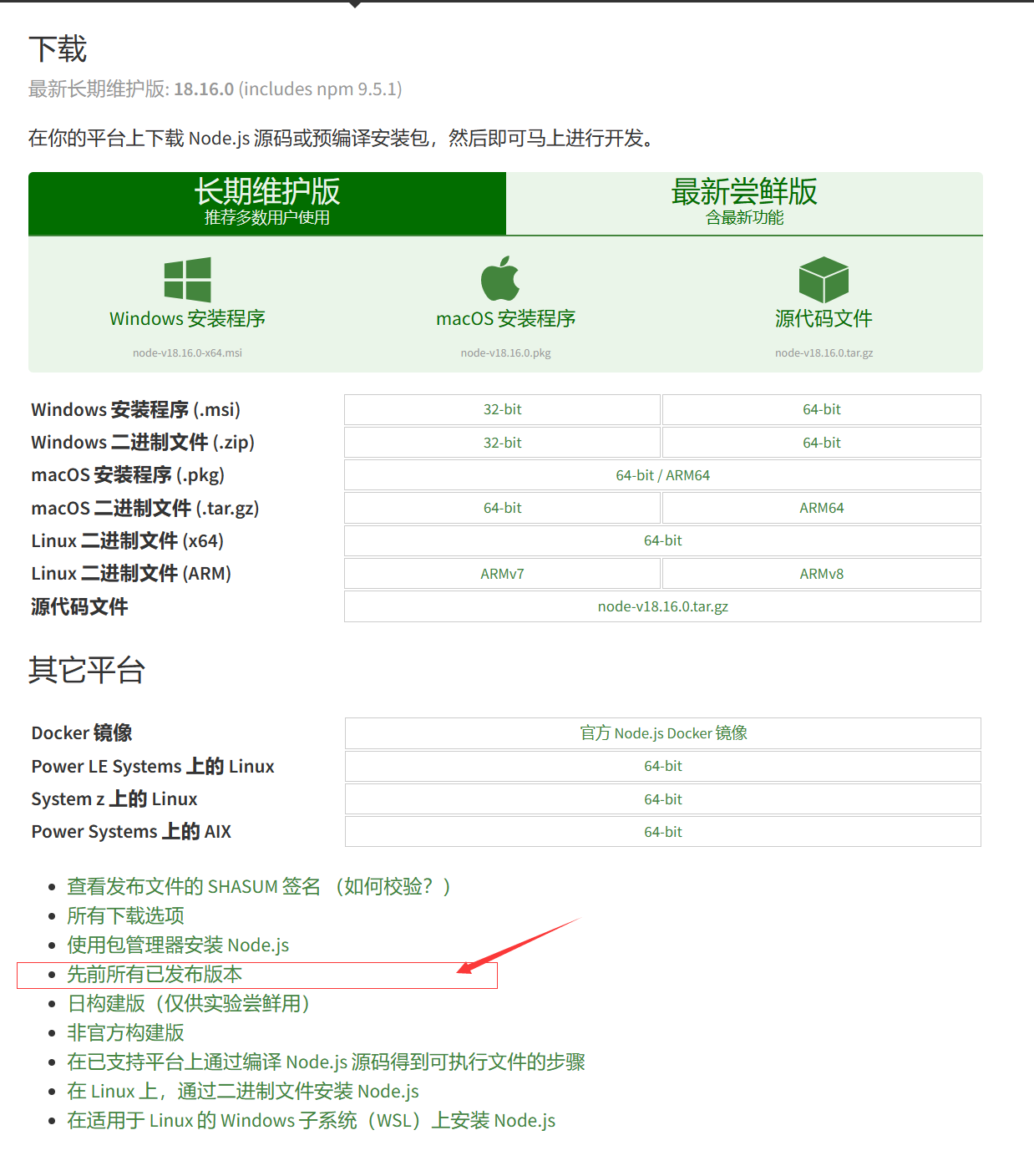
点击 先前所有已发布版本 ,查找 Node.js v16 最新版本
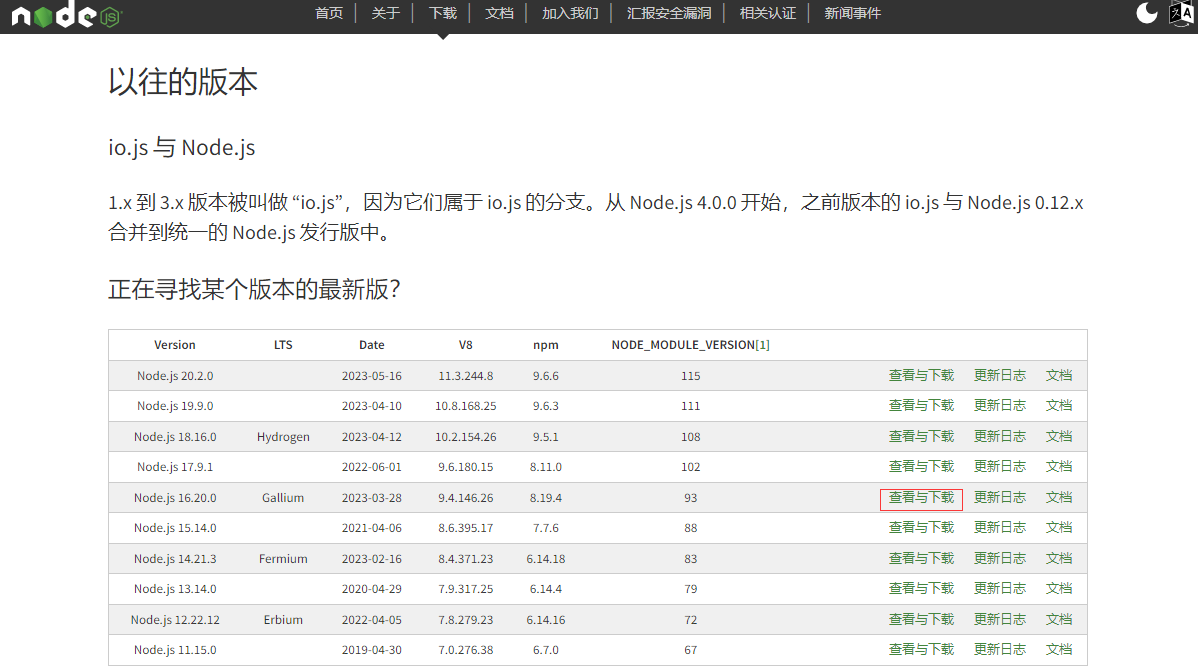
点击 查看与下载 ,打开下载页
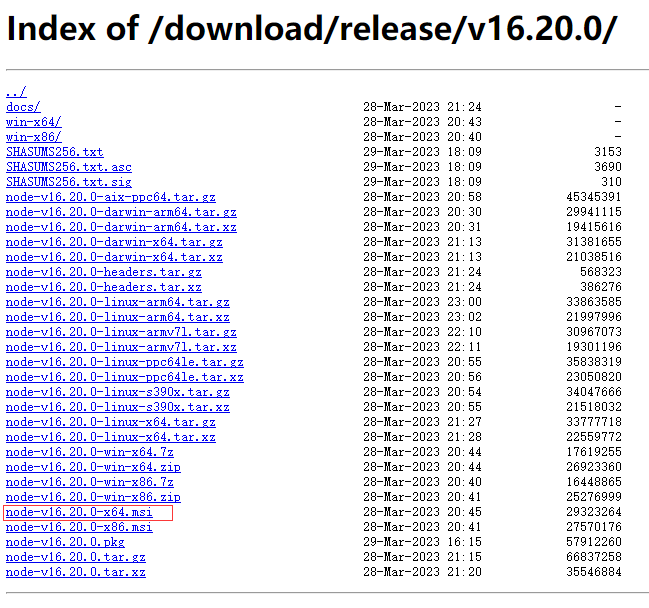
根据系统和架构,下载 node-v16.20.0-x64.msi。
当前电脑一般都为64位系统,因此下载
x64安装包,如果是32位系统,需要下载x86安装包
安装
点击 node-v16.20.0-x64.msi 文件,开始安装

点击 Next
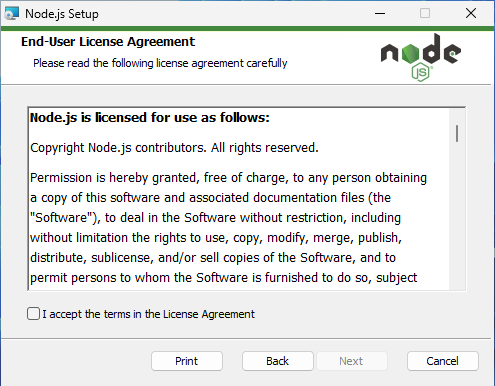
选中 I accept the terms in the License Agreement ,点击 Next
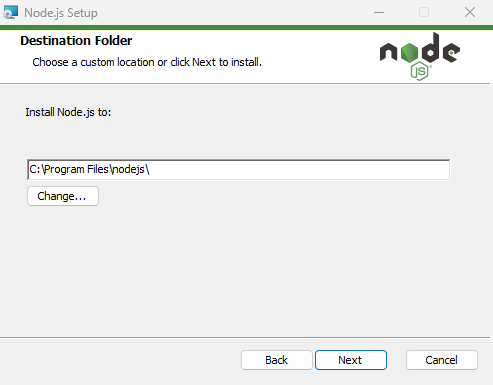
如有需要,修改安装目录后,点击 Next
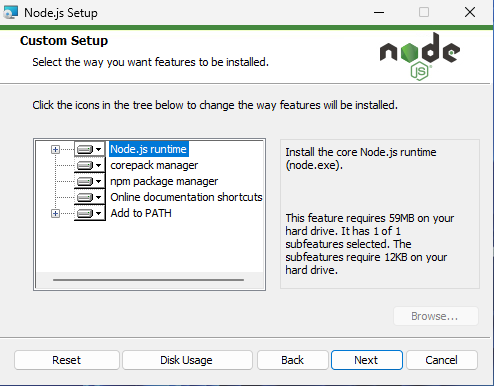
点击 Next
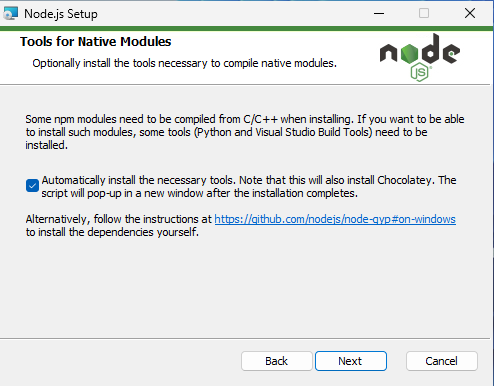
为确保后续安装部分npm modules时,不出现无法编译的问题,此处选择安装辅助编译工具。
点击 Next
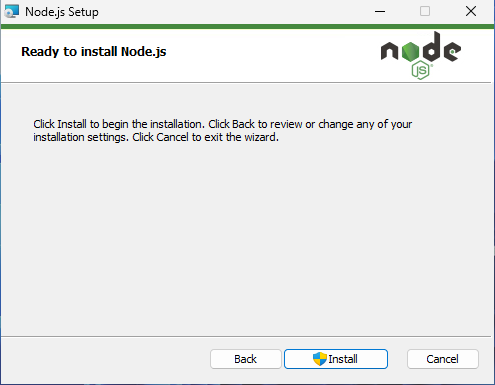
点击 Install
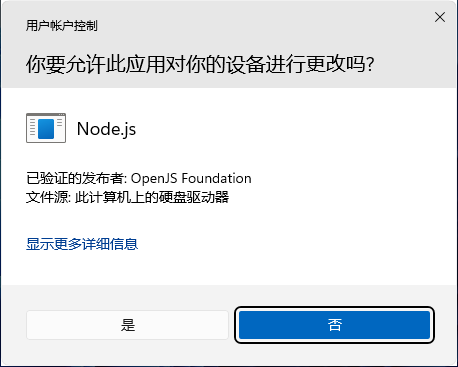
在弹出的用户帐户控制界面选择 是 开始安装 Node.js
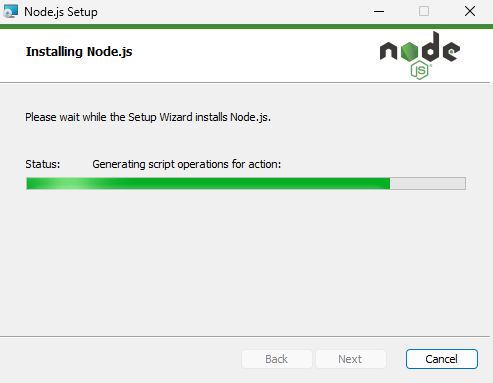
等待安装进度,完成后弹出以下界面
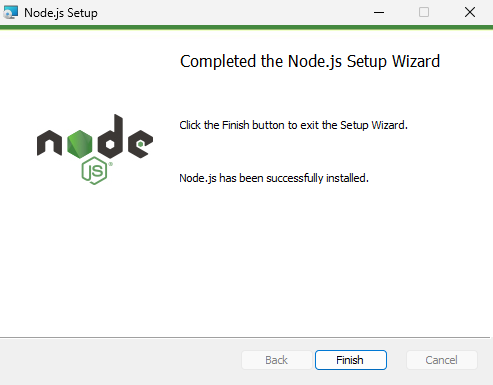
点击 Finish 完成 Node.js 安装。
因选择了安装编译辅助工具,因此自动弹出以下窗口开始安装辅助工具
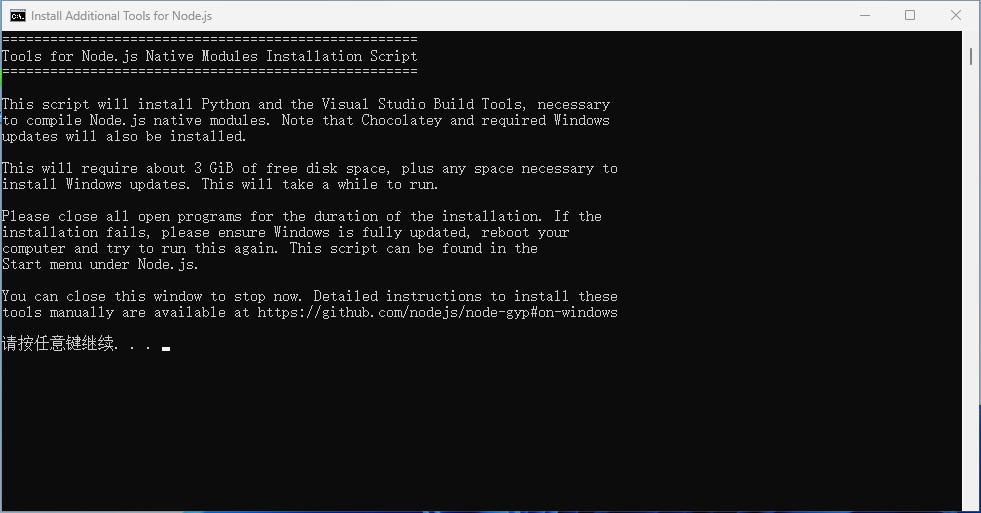
在Install Additional Tools for Node.js窗口中,按任意键继续安装
弹出以上窗口时,点击 是 按钮继续安装,界面上出现“请按任意键继续...”时,按任意键继续安装,直到出现以下界面
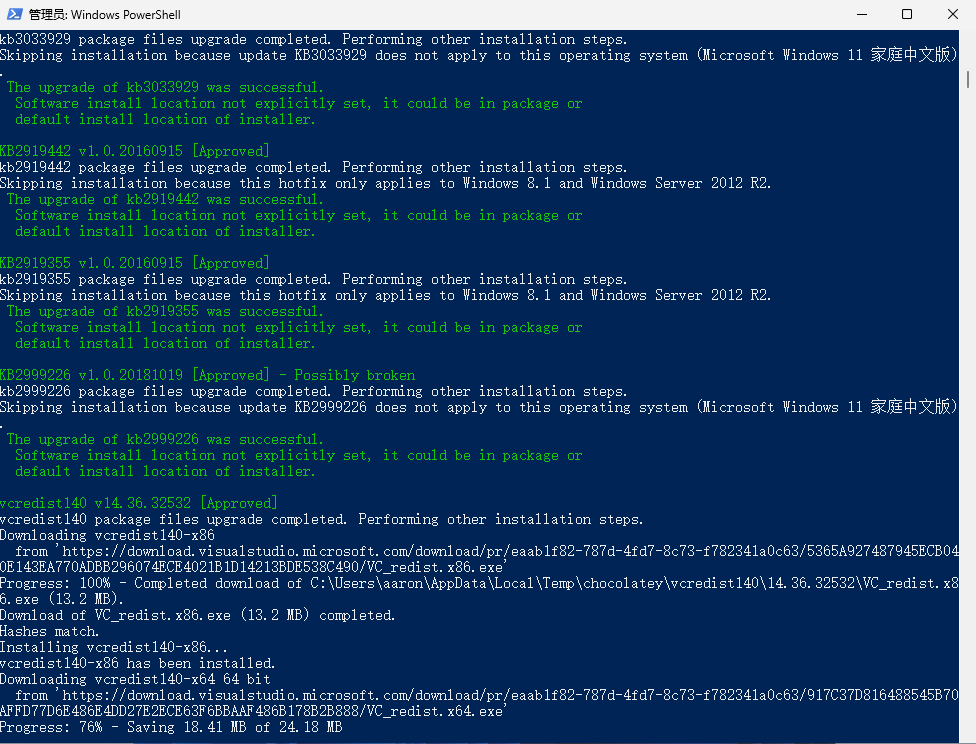
等待安装完成即可。
验证
打开Windows Cmd命令窗口,分别执行以下命令
cmd
node -vcmd
npm -v显示各自版本号,表示安装成功
cmd
D:\Workspace\maui\maui> node -v
v16.20.0 // [!code focus]
D:\Workspace\maui\maui> npm -v
8.19.4 // [!code focus]
修改全局依赖包下载和缓存目录
全局依赖包默认存储在系统盘,打开Windows Cmd命令窗口,执行以下命令可查看路径
cmd
npm root -g但为避免系统损坏而丢失文件以及方便管理,对全局依赖包下载路径与缓存目录进行修改,选择安装到系统盘以外的盘,最好放置在nodejs安装目录下。
cmd
D:\Workspace\maui\maui> npm root -g
C:\Users\aaron\AppData\Roaming\npm\mode_modules // [!code focus]
查看原始目录
打开Windows Cmd命令窗口,执行以下命令
cmd
npm config ls -l在输出信息中查找 prefix 和 cache
cmd
D:\Workspace\maui\maui> npm config ls -l
; "default" config from default values

_auth = (protected)
access = null
...
browser = null
ca = null
cache = "C:\\Users\\aaron\\AppData\\Local\\npm-cache" // [!code focus]
cache-max = null
...
parseable = false
prefer-offline = false
prefer-online = false
; prefix = "D:\\Program Files\\nodejs" ; overridden by builtin
preid = ""
production = null
...
replace-registry-host = "npmjs"
prefix = "C:\\Users\\aaron\\AppData\\Roaming\\npm" // [!code focus]

; "cli" config from command line options

long = true
PS D:\Workspace\maui\maui>
设置目录
打开Windows Cmd命令窗口,执行以下命令
bat
npm  config  set  prefix="D:\nodejs-v16.20.0\node_global"
npm  config  set  cache="D:\nodejs-v16.20.0\node_cache"
查看修改是否生效
打开Windows Cmd命令窗口,执行以下命令
bat
npm config ls显示以下内容,表明已经修改成功
bat
D:\Workspace\maui\maui> npm config ls
; "builtin" config from D:\Users\aaron\AppData\Roaming\npm\node_modules\npm\npmrc

; prefix = "C:\\Users\\aaron\\AppData\\Roaming\\npm" ; overridden by user

; "user" config from C:\Users\aaron\.npmrc

//192.168.1.10:8081/repository/npm-local/:_authToken = (protected)
cache = "D:\\Users\\aaron\\AppData\\Local\\npm-cache"
prefix = "D:\\Users\\aaron\\AppData\\Roaming\\npm"
registry = "http://192.168.1.10:8081/repository/npm-group/"

; node bin location = D:\Program Files\nodejs\node.exe
; node version = v16.20.0
; npm local prefix = D:\Workspace\maui\maui
; npm version = 9.6.6
; cwd = D:\Workspace\maui\maui
; HOME = C:\Users\aaron
; Run `npm config ls -l` to show all defaults.
修改环境变量
通过如下操作,打开环境变量修改界面,修改 Path 环境变量,将上一步修改的 prefix 目录替换掉
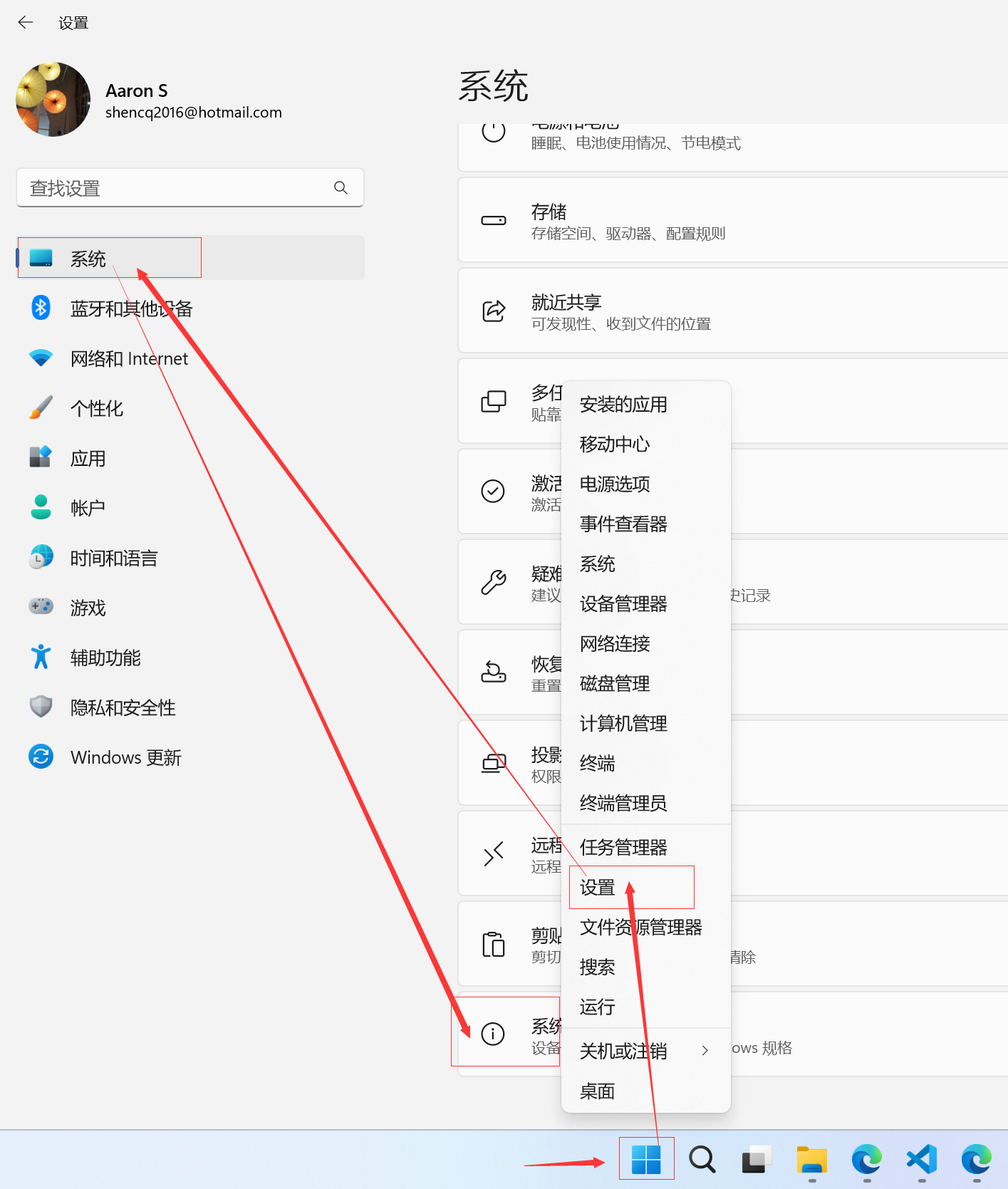
右键点击 开始 菜单,单击 设置,打开系统设置界面,在 系统 菜单下,查找并点击 系统信息 项目

点击 高级系统设置 打开系统属性界面
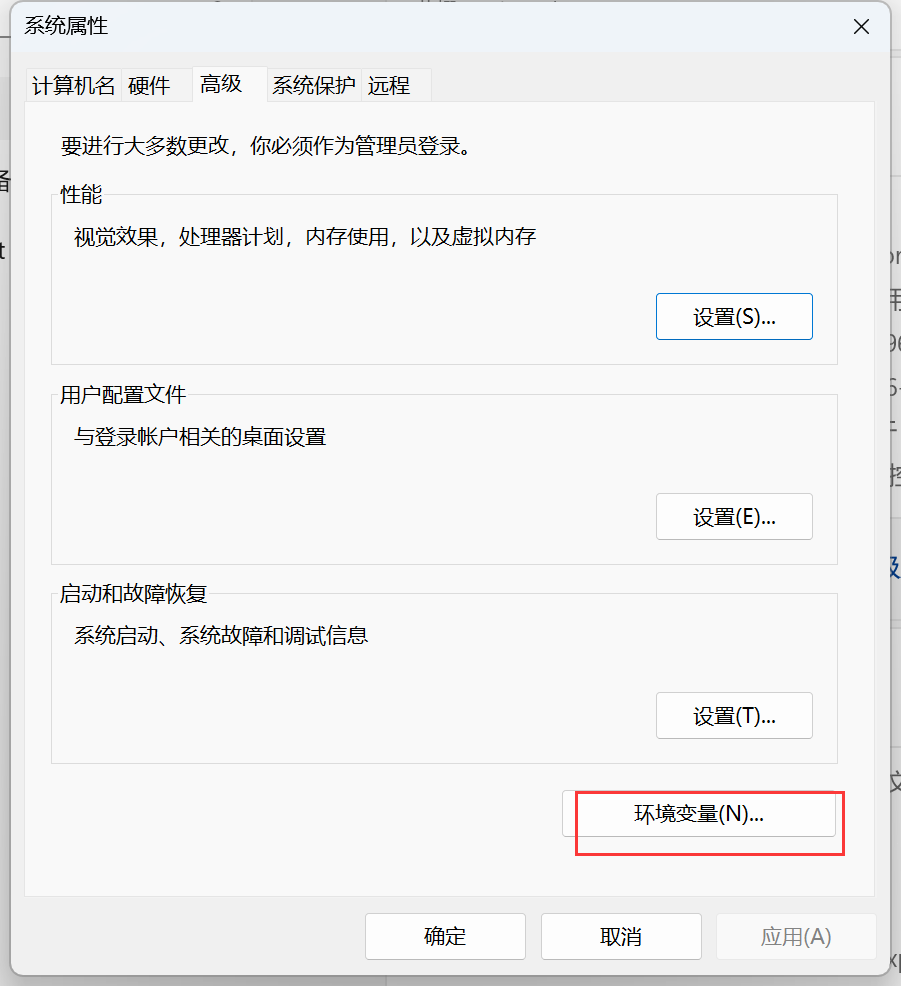
在 高级 页签下点击 环境变量 进入环境变量界面
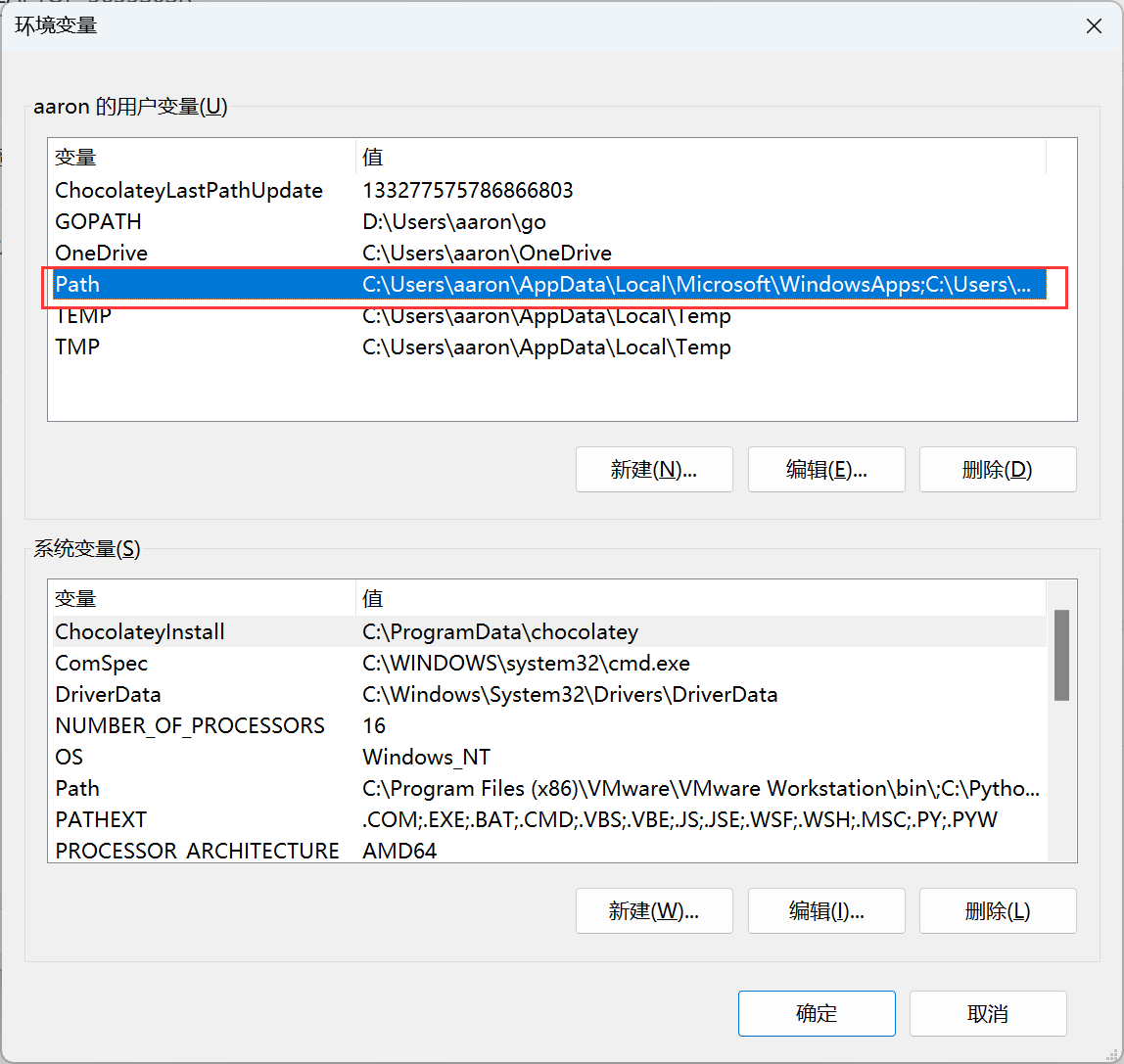
双击 Path 行,进入 Path 修改界面
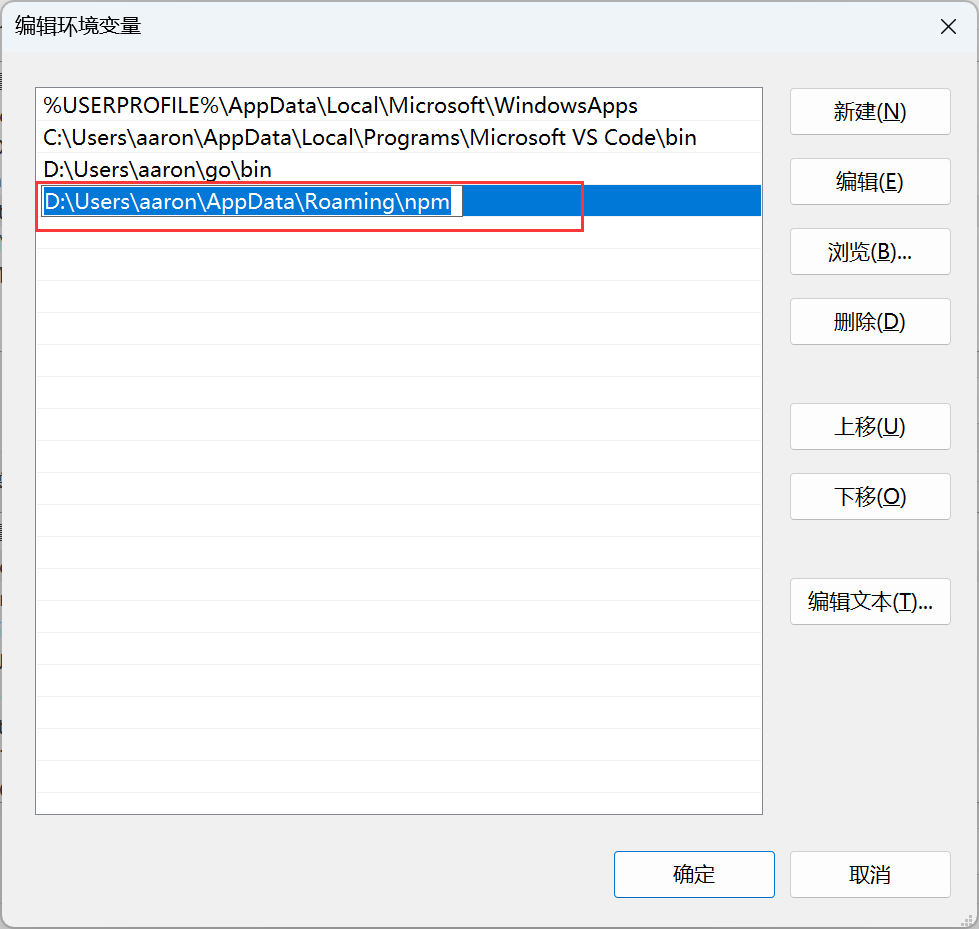
双击上文 Prefix 原路径所在行,修改为新路径后,点击确定即可。
设置国内仓库镜像(加速)
默认npm使用国外仓库下载资源速度较慢,可以设置国内仓库进项来进行加速。
安装 nrm 工具,可方便切换国内仓库镜像。
安装nrm工具
打开 Windows 终端,输入以下命令:
bat
npm install -g nrm注意
因版本更新问题,最新版本nrm依赖的open包采用ESModule版本,有兼容性问题,因此采用以下命令替代,避免出现问题二
bat
npm install -g nrm open@8.4.2验证
在Windows 终端中输入以下命令:
bat
nrm ls当界面显示以下内容时,说明nrm工具安装成功。
bat
C:\Users\aaron> nrm ls

  npm ---------- https://registry.npmjs.org/
  yarn --------- https://registry.yarnpkg.com/
  tencent ------ https://mirrors.cloud.tencent.com/npm/
  cnpm --------- https://r.cnpmjs.org/
  taobao ------- https://registry.npmmirror.com/
  npmMirror ---- https://skimdb.npmjs.com/registry/
修改为国内镜像
在Windows 终端中执行以下命令,可将默认仓库修改为淘宝仓库镜像
bat
nrm use taobao显示以下内容,说明nrm仓库地址已切换
bat
 C:\Users\aaron> nrm use taobao

   Registry has been set to: https://registry.npmmirror.com/
添加私有仓库
在Windows 终端中执行以下命令,可添加公司私有仓库
bat
nrm add gsoft http://192.168.1.10:8081/repository/npm-group/nrm 用法说明
bat
Usage: nrm [options] [command]

  Commands:

    ls                                    List all the registries
    current                               Show current registry name
    use <registry>                        Change registry to registry
    add <registry> <url> [home]           Add one custom registry
    login <registry> [value]              Set authorize information for a registry with a base64 encoded string or username and pasword
      -a  --always-auth                     Set is always auth
      -u  --username <username>             Your user name for this registry
      -p  --password <password>             Your password for this registry
      -e  --email <email>                   Your email for this registry
    set-hosted-repo <registry> <value>    Set hosted npm repository for a custom registry to publish packages
    set-scope <scopeName> <value>         Associating a scope with a registry
    del-scope <scopeName>                 Remove a scope
    set <registryName>                    Set custom registry attribute
      -a  --attr <attr>                    Set custorm registry attribute
      -v  --value <value>                  Set custorm registry value
    del <registry>                        Delete one custom registry
    rename <registryName> <newName>       Set custom registry name
    home <registry> [browser]             Open the homepage of registry with optional browser
    publish [<tarball>|<folder>]          Publish package to current registry if current registry is a custom registry. The field 'repository' of current custom registry is required running this command. If you're not using custom registry, this command will run npm publish directly
      -t  --tag [tag]                        Add tag
      -a  --access <public|restricted>       Set access
      -o  --otp [otpcode]                    Set otpcode
      -dr --dry-run                          Set is dry run
    test [registry]                       Show the response time for one or all registries
    help                                  Print this help

  Options:

    -h  --help     output usage information
    -V  --version  output the version number
常见问题
由于系统安全限制和nrm版本升级,可能会出现以下常见问题,解决办法如下:
问题一:脚本无法运行
Windows 11 默认禁止运行下载包的脚本,问题如下:
bat
 C:\Users\aaron> nrm ls
nrm : 无法加载文件 C:\Users\aaron\AppData\Roaming\npm\nrm.ps1,因为在此系统上禁止运行脚本。有关详细信息,请参
阅 https:/go.microsoft.com/fwlink/?LinkID=135170 中的 about_Execution_Policies。
所在位置 行:1 字符: 1
+ nrm ls
+ ~~~
    + CategoryInfo          : SecurityError: (:) [],PSSecurityException
    + FullyQualifiedErrorId : UnauthorizedAccess
处理方法
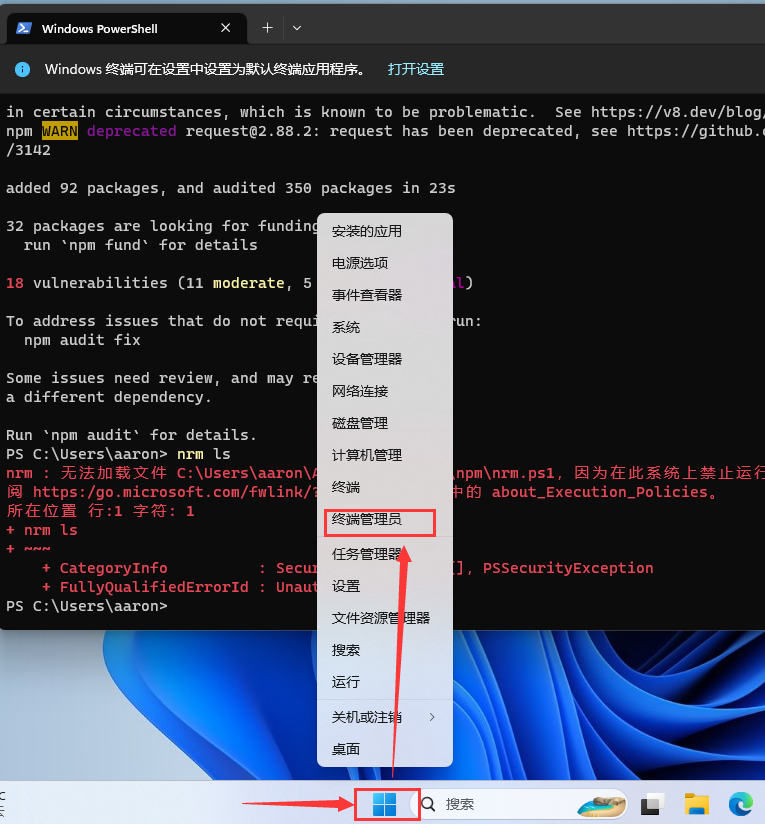
右键 开始菜单 打开终端管理员
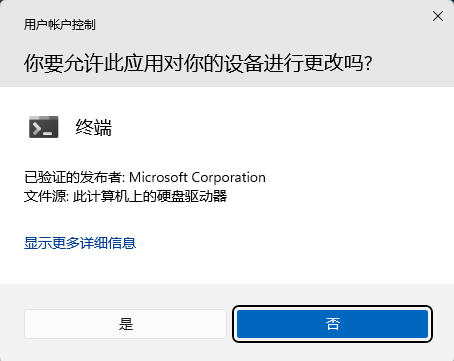
在弹出的用户账号控制界面中,点击 是 打开终端管理员界面
在终端管理员界面中输入如下命令并执行即可解决问题
bat
set-ExecutionPolicy RemoteSigned问题二:ERR_REQUIRE_ESM错误
执行 nrm 命令时,显示错误如下:
bat
C:\Users\aaron> nrm ls
C:\Users\aaron\AppData\Roaming\npm\node_modules\nrm\cli.js:9
const open = require('open');
             ^

Error [ERR_REQUIRE_ESM]: require() of ES Module C:\Users\aaron\AppData\Roaming\npm\node_modules\nrm\node_modules\open\index.js from C:\Users\aaron\AppData\Roaming\npm\node_modules\nrm\cli.js not supported.
Instead change the require of index.js in C:\Users\aaron\AppData\Roaming\npm\node_modules\nrm\cli.js to a dynamic import() which is available in all CommonJS modules.
    at Object.<anonymous> (C:\Users\aaron\AppData\Roaming\npm\node_modules\nrm\cli.js:9:14) {
  code: 'ERR_REQUIRE_ESM'
}
此问题主要是因为新版nrm依赖的open包从CommonJs规范改为了ESModule版本,与Nodejs v16版本不兼容,如下降级处理
处理方法
在Windows终端中执行以下命令,卸载当前依赖包
bat
npm uninstall nrm重新安装指定版本依赖包
bat
npm install -g nrm open@8.4.2